
Annotate PDF online for free and share it for feedback
Pin comments and draw on any page, then share one link. Free, with no account for you or your client.
Drop your PDF here
PDF up to 64 MB
- Comments and drawings on any page
- No account, for you or your client
- Private link: only people you send it to
How to annotate a PDF online
Upload your PDF
Drop it in the box above or choose the file. It opens right in your browser.
Click to comment
Click the spot a note is about and type. Circle or underline things with the Pencil.
Share one link
Copy the link and send it. Your client opens it, replies to your notes and adds their own.
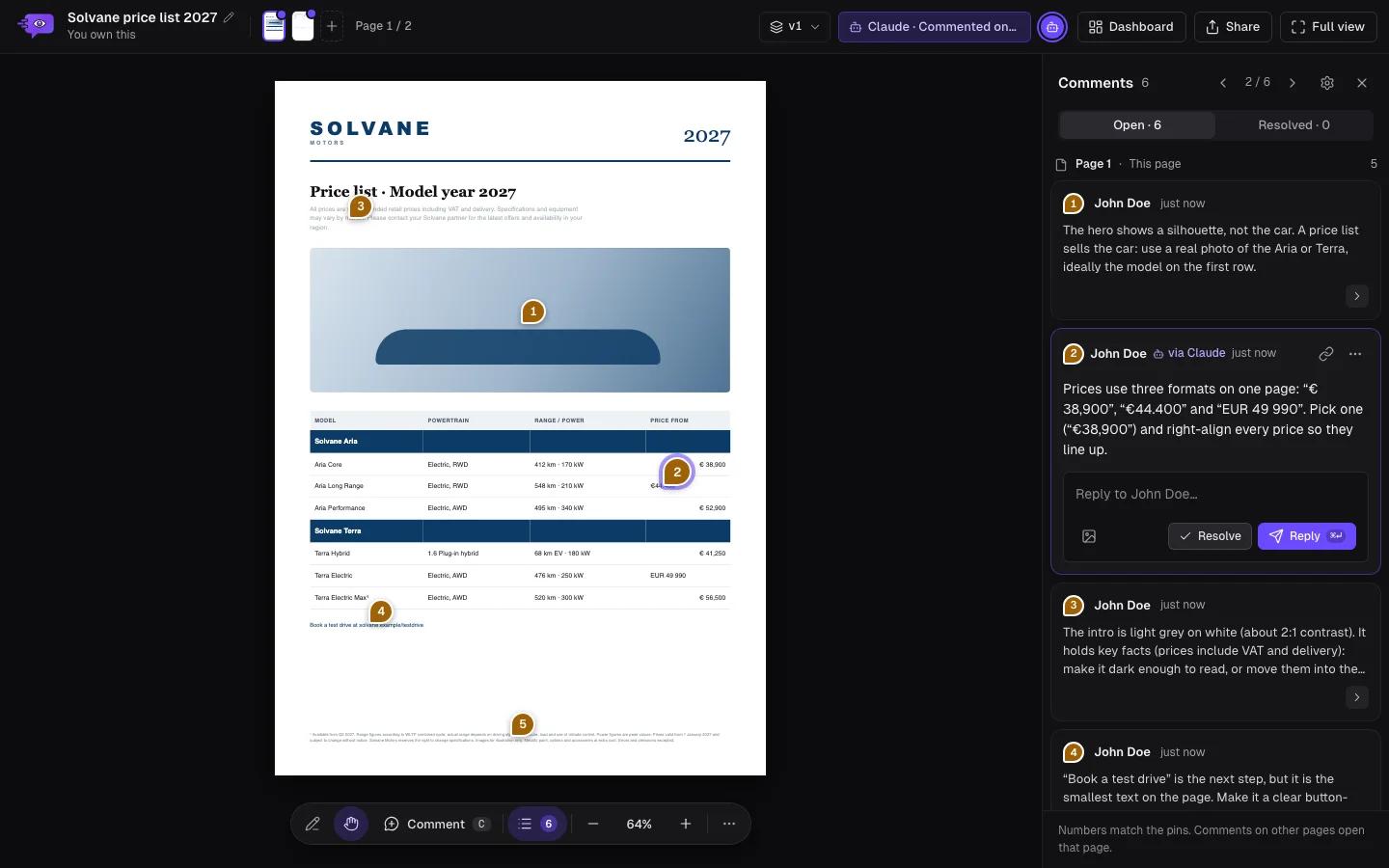
What you can do on a PDF
Comments on the exact spot
Each comment is a numbered pin on the page, with its own thread of replies.
Draw on the page
Circle a headline, cross out a line or underline a price with the Pencil.
Resolve as you go
Mark a comment done once it is fixed, so only open feedback is left to read.
Any device
The PDF opens in any browser, on a laptop or a phone. Nothing to install for you or your client.
Feedback on a PDF, not a PDF editor
Comnview is for getting feedback on a PDF: a brochure, a proposal, a menu, a set of drawings. Every note sits on one link where everyone sees the same thread, instead of annotated copies going back and forth by email.
It does not change the file itself: no highlighting the text, filling forms or signing. For those, use a PDF editor such as Preview, Microsoft Edge or Acrobat Reader (see below). On Pro, when the PDF changes, you upload the new version to the same link.
Comnview, a PDF editor or an email?
| Option | Where the notes are | What reviewers need | Best for |
|---|---|---|---|
| Comnview | Pinned to the spot, one thread per note, on one link | The link. No account, no app | Feedback and review rounds |
| A PDF editor | Inside the file; each reviewer sends back a copy | A PDF app | Highlighting, forms, signing |
| An email | A list of “page 3, second paragraph…” | One quick note |
What people annotate
Proposals and pitch decks
Collect a client’s notes on the wording and the numbers before the final version.
Brochures and print proofs
Catch typos and layout issues on the page before anything goes to print.
Plans and drawings
Floor plans, site plans and technical drawings, with each note where it applies.
Reports and papers
Comment on a draft with co-authors or a supervisor in one place.
Other ways to annotate a PDF
Need a note for yourself only? These apps annotate the file itself.
Mac (Preview)
- Open the PDF in Preview.
- Click the Markup button (a pen tip) to show the tools.
- Highlight, add text or a note, then save with Cmd+S.
Windows (Microsoft Edge)
- Right-click the PDF and open it with Microsoft Edge.
- Use Draw, Highlight or Add text in the toolbar.
- Click Save to keep the notes in the file.
iPhone and iPad (Files)
- Open the PDF in the Files app.
- Tap the Markup button (a pen tip).
- Draw or add text, then tap Done.
These save the notes inside the file, so each reviewer sends back their own copy. Comnview keeps everyone’s notes on one link.
Or ask your AI assistant
Connect Comnview to Claude, ChatGPT, Claude Code or Cursor. Your assistant reads every page as drawn, pins its notes where they belong and sums up what your client said.
- “Look at the price list PDF and pin anything that is hard to read”
- “Summarize the open comments on the brochure”
- “Draft replies to the comments on page 3”
AI agents are on the Pro plan; every new account gets 7 days of Pro.
Frequently asked questions
Is it free to annotate a PDF?
Yes. Without an account you keep up to 3 projects, PDFs, images and websites together. Free shows the first 10 pages of a PDF; Starter shows 50 and Pro 100.
Do I need an account?
No. Drop the PDF and start commenting. If you create a free account later from the share window, the PDF moves into it.
Can my client comment without an account?
Yes. They open the link in any browser, click where a note belongs and type. They can reply to your comments too.
Can I download the annotated PDF?
Not as an edited PDF: the comments stay on the link, where they are numbered and threaded. On Pro you can export every comment as a PDF report or a CSV file.
Can I highlight text or add text to the PDF?
No. Comnview pins comments and draws with the Pencil on top of the page; the file itself stays as it was. To edit the PDF, use a PDF editor such as Preview or Microsoft Edge.
How big can the PDF be?
Up to 64 MB. Upload a PDF on its own: each PDF gets its own link.
Who can see my PDF?
Only people with its link, and nobody gets the link until you share it. You can add a password to the link on every plan, Free included.
Does it work on an iPhone or iPad?
Yes. Upload from the Files app, then tap the page to comment. Your client can review on a phone too.