
Annotate an image or screenshot online, for free
Drop an image or paste a screenshot, pin comments and draw on it, then share one link. Free, no account.
Drop or paste an image
PNG, JPG, WebP up to 10 MB
- Comments and drawings on PNG, JPG and WebP
- No account, for you or your client
- Private link: only people you send it to
How to annotate an image online
Drop or paste the image
Drop a file in the box above, choose one, or paste a screenshot straight from the clipboard.
Click to comment
Click the spot a note is about and type. Circle or point at things with the Pencil.
Share one link
Send the link. Your client sees every note in place, replies and adds their own.
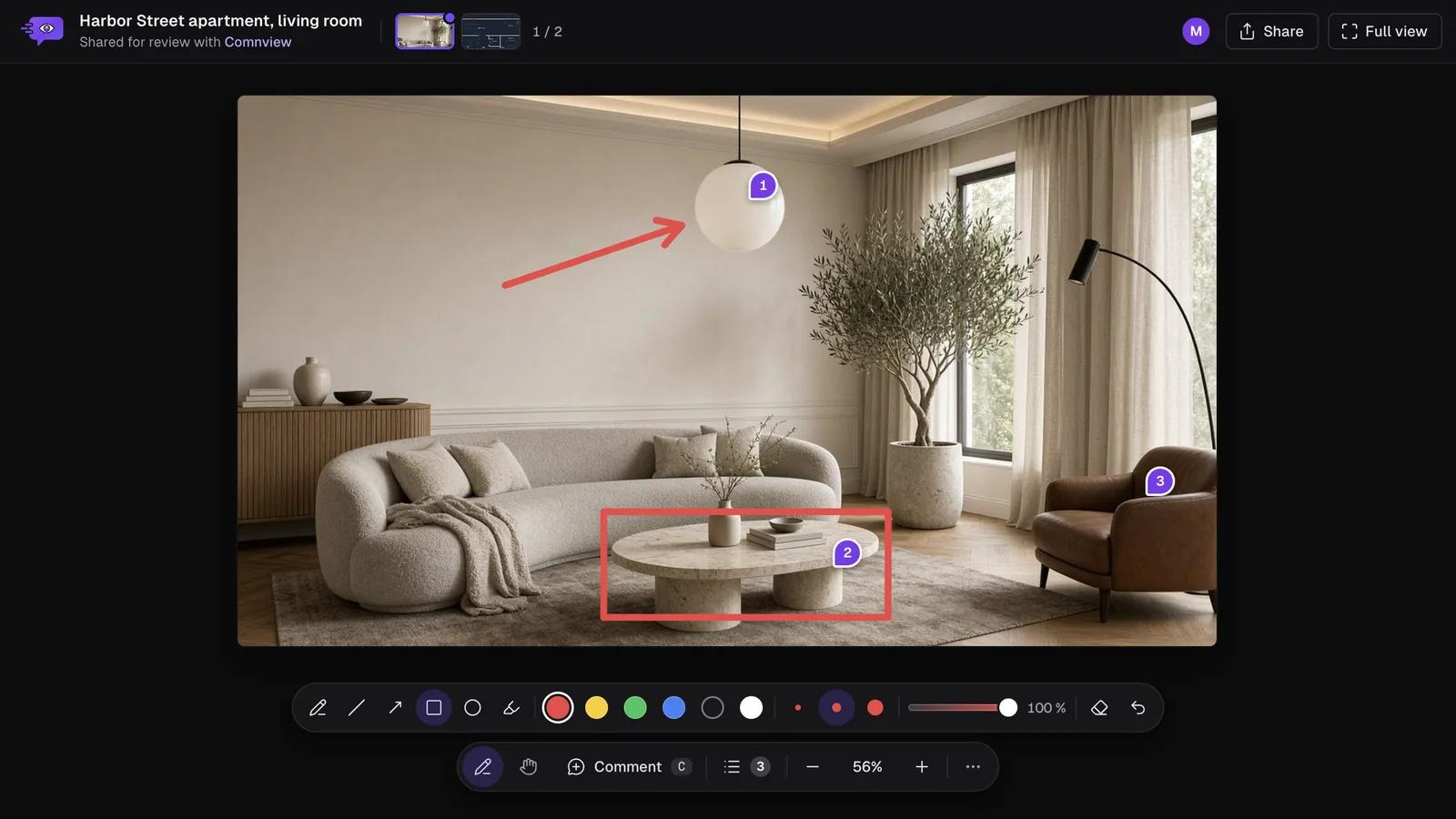
What you can do on an image
Comments on the exact spot
Each comment is a numbered pin on the picture, with its own thread of replies.
Draw on it
Circle a button, underline a word or sketch an arrow with the Pencil.
Several images, one link
Drop a set of screens or photos together and they share one link: up to 10 on Free.
Resolve as you go
Mark a comment done once it is fixed, so only open feedback is left to read.
For feedback, not for labeling data
Comnview is for people giving feedback on a picture: a design, a screenshot of a bug, a photo of a room, an ad before it runs. The notes stay on one link, so nobody has to describe where on the image they mean.
Labeling images for machine learning, with boxes, polygons and a COCO or YOLO export, is a different job: tools such as CVAT or Label Studio are made for it.
What people annotate
Designs and mockups
App screens, banners and logos, with each note on the part it is about.
Bug screenshots
Paste a screenshot, pin what is wrong and send the link to whoever fixes it.
Photos of rooms and products
Interiors, renovations and product shots, where “this corner” needs a pin.
Social posts and ads
Get the copy and the picture approved by a client before it goes out.
Other ways to mark up a screenshot
For a quick note on your own screenshot, your computer or phone can draw on it.
Mac
- Press Cmd+Shift+4 and drag over the area.
- Click the thumbnail in the corner to open Markup.
- Draw, add text or shapes, then click Done.
Windows
- Press Windows+Shift+S and pick the area.
- Click the notification to open it in the Snipping Tool.
- Use the pen or highlighter, then save.
iPhone
- Take a screenshot.
- Tap the preview in the corner.
- Draw with the Markup tools, then tap Done.
They draw on the picture itself. To collect replies from someone else on the same picture, share it on Comnview.
Frequently asked questions
Is it free to annotate an image?
Yes. Without an account you keep up to 3 projects, with up to 10 images in each. Starter and Pro hold more.
Do I need an account?
No. Drop or paste the image and start. If you create a free account later from the share window, the project moves into it.
Which image formats can I annotate?
PNG, JPG and WebP, up to 10 MB each. A PDF works too, on its own link.
Can I paste a screenshot instead of uploading it?
Yes. Take the screenshot to your clipboard and press Cmd+V on a Mac or Ctrl+V on Windows while this page is open.
Can my client comment without an account?
Yes. They open the link in any browser, click where a note belongs and type. They can reply to your comments too.
Can I take a screenshot of a whole web page and annotate it?
Yes. Paste the page’s link into the full-page screenshot tool: the whole page arrives as one picture, ready for comments.
Who can see my images?
Only people with the link, and nobody gets the link until you share it. You can add a password to the link on every plan, Free included.