
How to annotate an image online, free, with no signup
Annotating an image online works best when every note sits on the exact spot and the answers come back on the same picture. Your client replies in the browser with just a name: no account, no app.
 By Radek Svoboda, Product manager and digital builderUpdated · 10 min read
Table of contents8 sections
TL;DR
Drop or paste your image
A file, several at once, or a screenshot from your clipboard. No account needed.
Pin your notes
A numbered pin on the exact spot, plus arrows, boxes and highlights.
Share one link
Your client answers on the picture, and you resolve each note as you fix it.
What “annotating an image” means, and when you need it
Annotating an image means putting notes on top of it: a pin on the lamp that should be warmer, an arrow to the logo that needs more space, a box around the bug in a screenshot. The picture stays as it is. The annotations are the conversation about it.
There are two jobs hiding behind the word. One is marking up a picture to explain something, for yourself or for someone else. The other is collecting feedback on it, where your client, your team or your developer answers on the same picture. Comnview does both on one link: draw and pin your notes, and when you need answers, share the same link instead of a marked-up copy.
Good picture annotations sit on the exact spot, keep a thread of replies, and can be marked as done. A flat screenshot with red scribbles does the first part; it does not do the other two.
When you need it
Client sign-off
Send a render, a photo or a floor plan and get every change request pinned where it belongs.
Screenshot bug reports
Annotate a screenshot of the broken screen and send it to the developer as one link.
Logo and artwork rounds
Put the variants on slides and let the client pin the one they like and what to change.
Team reviews
Collect notes from several people on the same image, without merging five marked-up copies.
Reviewing photos, renders, floor plans, logo sheets or any other design with clients? See the image feedback tool and the design feedback tool for more examples.
How to annotate an image online, step by step
We used a fictional living room render to show each step. Screenshots are ours, taken in Comnview.
Drop or paste your image
Drag images onto the box below, or click it to choose files. A screenshot on your clipboard? Press Cmd+V (Mac) or Ctrl+V (Windows). It takes PNG, JPG and WebP up to 10 MB each, and several images become slides on one link. PDFs work too, on a link of their own.
Drop, browse, or paste
PNG, JPG, WebP up to 10MB · PDF up to 64MB
Three images pasted at once: one link, three slides. Click the exact spot and write your note
Pick Comment (or press C) and click the spot you mean. The numbered pin stays right there, so “this lamp” is never ambiguous. Zoom in for small details, and attach up to 4 images to a comment, for example a photo of the finish you want.
On a phone, press and hold where you want the pin.
Pin a comment right on the part of the picture you mean. Draw an arrow, a box or a highlight
Switch to the Pencil (P) for freehand, a line, an arrow, a box, an ellipse or a highlight, in six colors, three stroke widths and any opacity. The Eraser and Undo fix mistakes. Drawings stay on the spot at any zoom, next to the comment they explain.
An arrow to the lamp and a box around the table. Share one link
Click Share and copy the review link. Anyone with it can comment, no account needed, and a password keeps a private picture private (every plan, Free included). An account is always optional, but a free one saves steps: invite clients, teammates, friends or family by email with a note, right from the Share dialog (up to 5 at a time) instead of pasting the link into another app, and get an email whenever someone comments or replies.
Copy the link; add a password if you need one. Your client comments with just a name
Your client opens the link on a phone or a laptop and types a name before the first comment, nothing else. If they add their email, it is used only to tell them about replies. And when they comment, you hear about it by email, as long as you have an account.
A name once; the email is optional. Reply, fix and resolve
Every pin has a thread: reply in place, make the change, click Resolve. The Open tab is your to-do list and the Resolved tab keeps the record. Made a new version of the picture? On Pro, upload it on top of the old one: every comment stays on its exact spot, so you check each fix on the new version and resolve it there. Earlier versions are one click away, at the top right.
Reply under the pin; resolve it when it is done.
6 ways to annotate an image, compared
Most of these are great at marking up a picture. Fewer help you collect answers on it. Facts checked on 5 October 2026; sources link to each vendor’s own page.
| Method | What you can add | How feedback comes back | Cost |
|---|---|---|---|
| Snipping Tool (Windows)Source | Pen, highlighter, shapes, emojis, crop and text actions (OCR) right after a snip (Windows logo key + Shift + S). | You save or share the marked-up file; replies arrive by email or chat. | Built into Windows |
| Preview (Mac)Source | The Markup toolbar: sketch, draw, shapes, highlight, zoom lens, text and signatures. | You send the saved file. Apple notes that once you save an annotated image, you can no longer edit, move or delete the annotations. | Built into macOS |
| SnagitSource 1 · Source 2 | Arrows, callouts, text and markup on each capture, scrolling capture and Smart Redact. | One click hosts images and videos on Screencast, or the share button sends the capture where you choose. | $39.00 per user per year (US store), 14-day money-back guarantee |
| Photopea (online editor)Source | A free photo editor in the browser with professional-grade tools, so you can paint or type anything onto the picture. | None built in: it runs on your device and your files never leave it, so you export and send a copy. | Free |
| FigmaSource | Comments on design files, plus everything a design tool can draw. | In the file. On a paid plan, others can view and comment without extra seats. | Starter free; Professional Full seat $16 a month, Collab seat $3 a month |
| Comnview | Images, screenshots and PDFs, several on one link as slides, or a whole web page from a pasted link or the Chrome extension. Pins with replies, plus freehand, lines, arrows, boxes, ellipses and highlights. The original file stays untouched. | On the same link: reviewers pin replies with a name only, you resolve them. On Pro a new version goes on top with every pin kept, so you resolve on the new version. | Free; Starter from $9 a month billed yearly |
Pick a markup app when all you need is one marked-up file to send. Pick a feedback tool when someone has to answer, and you want the answers on the picture instead of in your inbox.
Comnview prices are on the pricing page. Comparing feedback tools? Read Comnview vs Markup.io.
Optional: annotate a whole web page, top to bottom
You need neither of these to annotate an image: anything you can copy or save, you can drop or paste. They help when the picture you want is a web page, all of it, not only the part that fits on screen. Both give you two things at once: a full-page picture and a live copy of the page you can scroll and click through.
Paste a link to a live page
Paste the address of a public page and Comnview captures it for you: the live page first, then the full-page picture. Nothing to install. Free includes 3 pages to try, and Starter and up capture as many as you like.
Use the Comnview Chrome extension
For pages only you can open: behind a login, on localhost or on staging. It captures in your own browser, so nothing gets deployed or made public, and it takes the same two things, the live page and the full-page picture. Free on every plan; each capture is a project, like an upload.
Commenting on the live page itself, step by step, is in how to annotate a website.
Optional, free on every plan. Captures the whole page in your own browser, so nothing is deployed or made public.
8 tips for image feedback that gets acted on
One change per pin
Two requests in one comment means one gets missed. Pins cost nothing; use more of them.
Say what and why
“Warmer bulb, it feels cold next to the curtains” beats “lamp?”.
Draw when words fail
An arrow and a box explain position, spacing and size faster than a paragraph.
Attach an example
Paste a photo of the finish, color or style you mean instead of describing it.
Zoom before you comment
Pin small details at full size so the note lands on the right pixel, not the right area.
Put the fix on top
Upload the next version over the old one (Pro): the pins stay put, so each fix gets checked where it was asked for.
Ask, do not just tell
Questions like “Does this feel like your brand?” get better answers than “Thoughts?”.
Resolve as you fix
A resolved pin is a finished task. The open list is what is left to do.
Questions to ask your client when you send the link
Clients give clearer feedback when you ask specific questions. Paste a few of these into your message:
- What is the first thing you notice, and is that what you want people to notice?
- Is anything in the picture wrong, missing or out of date?
- Do the colors, materials and fonts feel like you?
- If you could change only one thing, what would it be?
- Is there anything you would remove?
- Does it look right on your phone as well as on a big screen?
Frequently asked questions
How do I annotate an image online for free?
Use a free tool that keeps the notes on the picture. In Comnview you drop or paste the image, pin comments and drawings on the exact spot, and share one link. The free plan keeps 3 projects with up to 10 images each, password-protected links and links that never expire.
What is the best software for annotating images?
It depends on the job. For a quick marked-up copy, the Snipping Tool on Windows or Preview on a Mac are already installed. For polished screenshots with callouts, a screenshot annotation tool like Snagit is built for it. For feedback from clients or a team, use a tool where they can answer on the image itself, like Comnview.
How do I annotate a screenshot?
Copy the screenshot, open comnview.com and press Cmd+V or Ctrl+V anywhere on the page (or drop the file on the upload box): it uploads right away, no file to save first. Then pin comments and draw arrows or boxes on it. If you want a whole web page in one picture, the optional Comnview Chrome extension takes a full-page screenshot and opens it ready to annotate, localhost and logged-in pages included.
Can I upload a new version and keep the comments?
Yes, on Pro. Upload the new image on top of the old one: every comment stays on its exact spot, so you check each fix on the new version and resolve it there. Earlier versions stay one click away, and you can replace a single slide or all of them.
Can I annotate several images at once?
Yes. Drop, pick or paste several images together and they share one link, one slide per image. A project holds 10 slides on Free, 50 on Starter and 100 on Pro. A PDF gets a link of its own (up to 64 MB and 100 pages), so upload it on its own.
Does my client need an account to comment?
No. They open the link in any browser, type a name once and pin comments. Email is optional, only for reply notifications.
Can I download the annotated image?
Comnview keeps your original file untouched and stores the notes on top of it, so there is no flattened copy to download. On Pro you can export the comments as a PDF report, with each image, its numbered pins and the comments under it, or as a CSV spreadsheet.
Is Comnview an image editor?
No. It does not crop, retouch or change your picture. It is for getting feedback on it: comments and drawings sit on top, and the file your client sees is the file you uploaded.
All sources (6), checked 5 October 2026
- Microsoft Support: use Snipping Tool to capture screenshots
- Apple Support: annotate an image in Preview on Mac
- TechSmith store: Snagit plans
- TechSmith: Snagit features
- Photopea: free online photo editor
- Figma pricing
Product names are trademarks of their owners; Comnview is not affiliated with them. Prices are as shown on each vendor’s page on 5 October 2026 and may differ by country.
Screenshots taken by us in Comnview. The pictures, the names and the invoicing app shown are fictional sample content.
More from the blog
 Guide
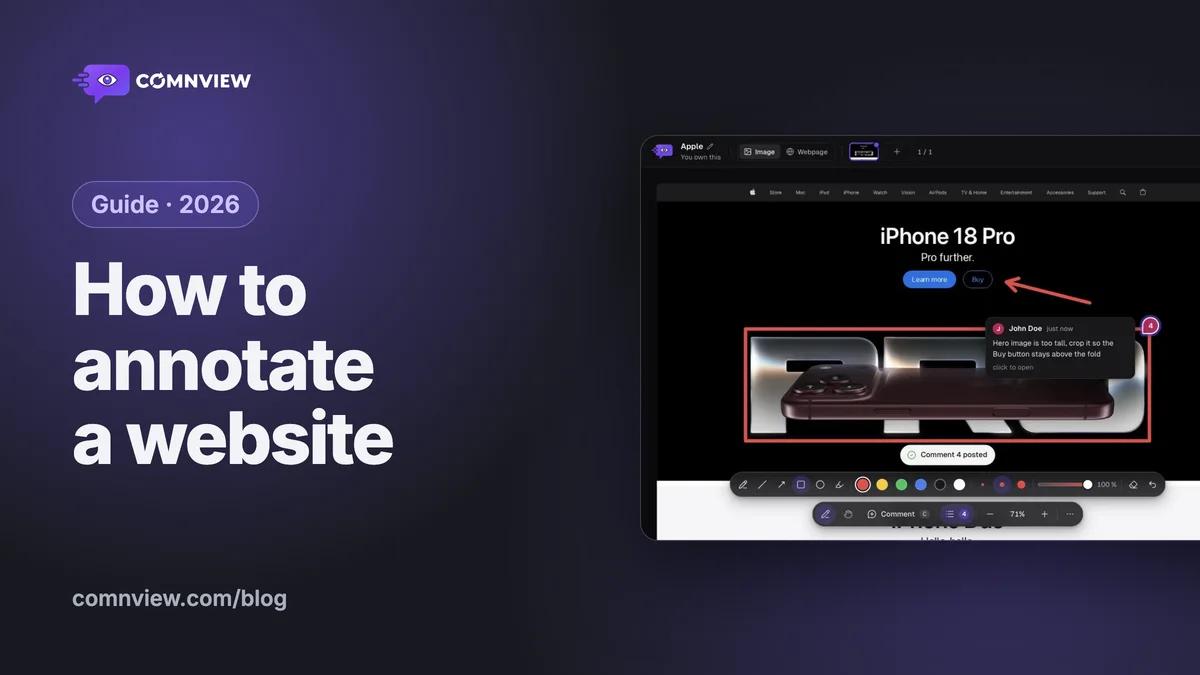
GuideHow to annotate any website, free
Paste a link, pin comments on the exact element and send one link: a step-by-step guide with screenshots, plus localhost, staging and tips for feedback that gets acted on.
· 9 min readRead
 Comparison
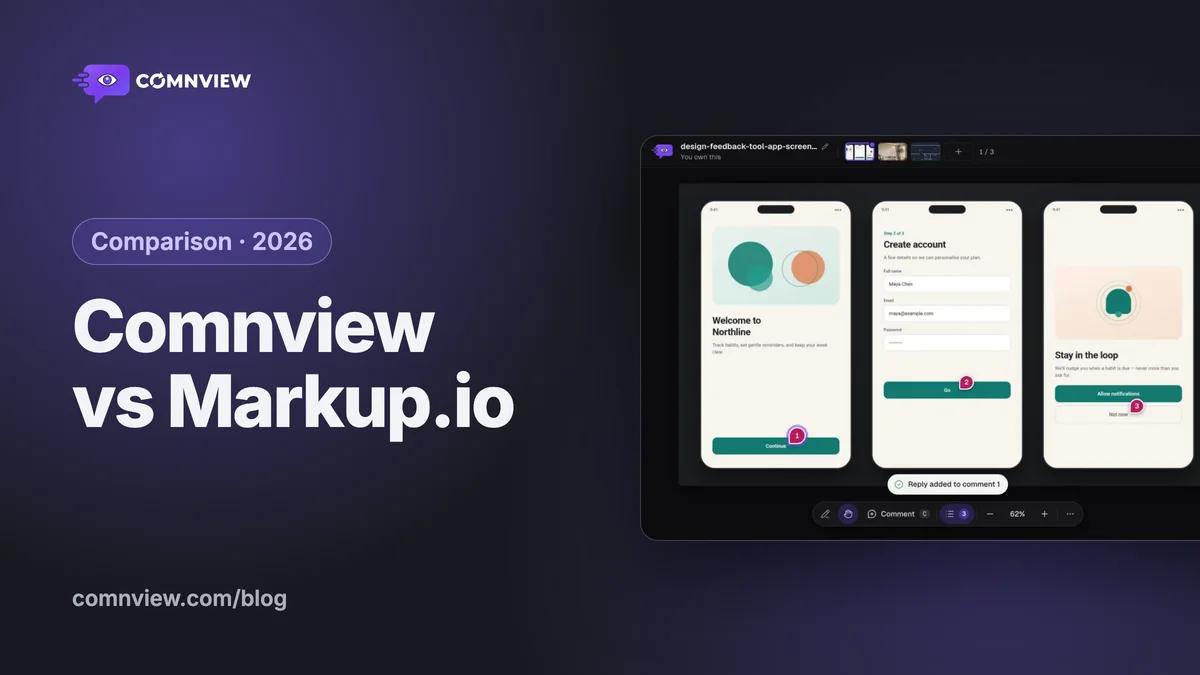
Comnview vs Markup.io: the free Markup.io alternative
The same review in both tools, side by side: what each costs, what your client needs to comment, files, websites (localhost too), versions and teams.
· 12 min readRead